|
HOME > Tricks > How to optimize the graphics with Reshade
|
How to optimize the graphics with Reshade
This tutorial guides you through installing ReShade, an awesome graphic utility that let you modify your game's graphics in real-time, in this case, OutRun 2 SP SDX.
You can apply CRT effects to recreate arcade 80's, 90's, 00's feeling (cathode-ray tube monitor for greater arcade immersion) or experiment with a lot of other incredible visual effects.
It also allows you to display a white border around the screen, enabling the use of light guns like the Sinden with shooting games (such as Terminator Salvation, Alien Armaggedon, Time Crisis, House of the Dead, Transformers etc. See the end of the tutorial for setup instructions).
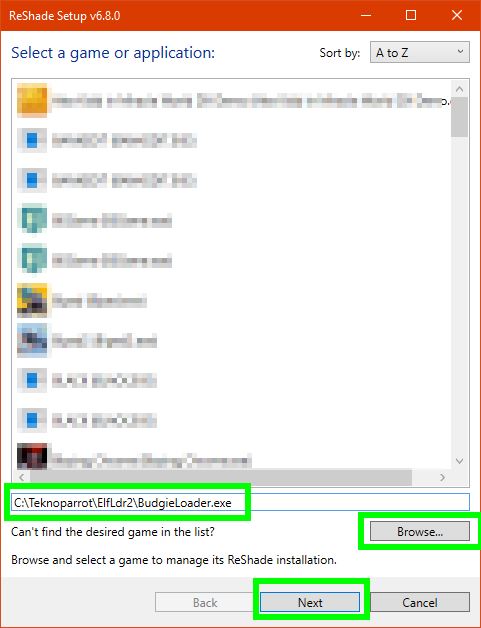
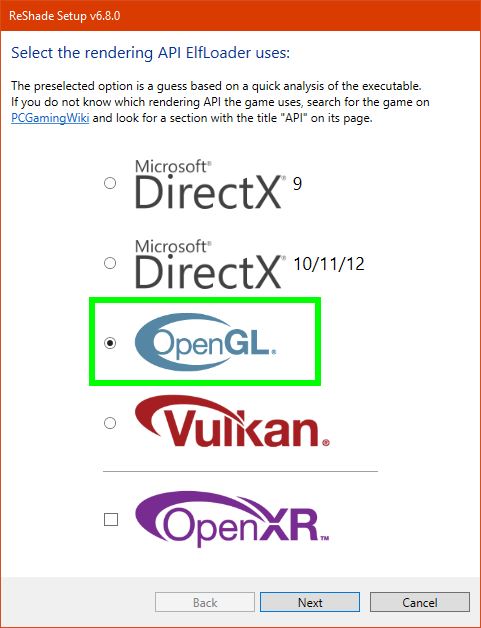
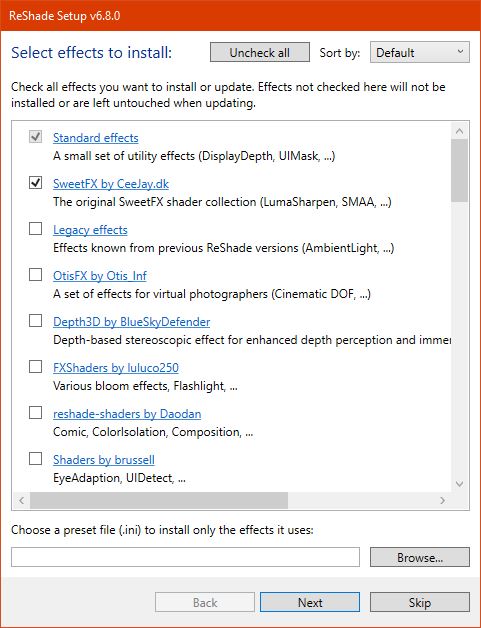
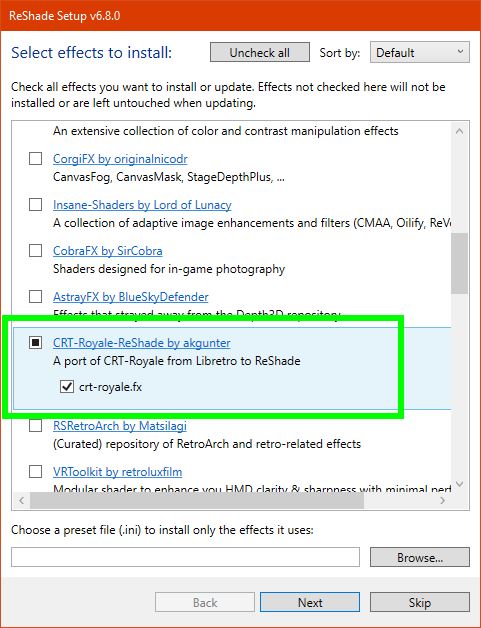
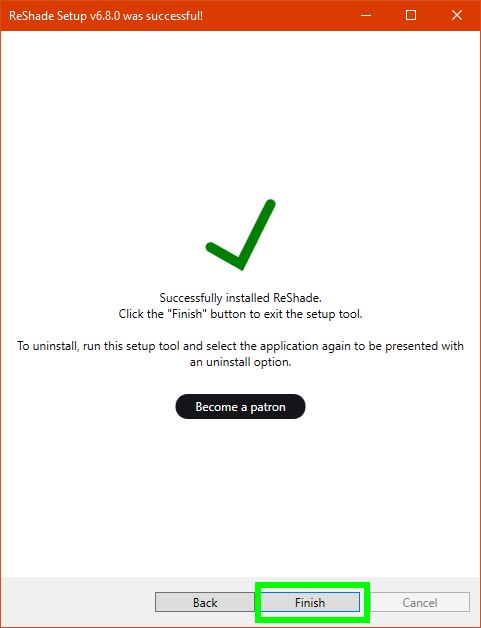
1 - Downloading & install Reshade
2 - Configuring Reshade IN Outrun 2 SP
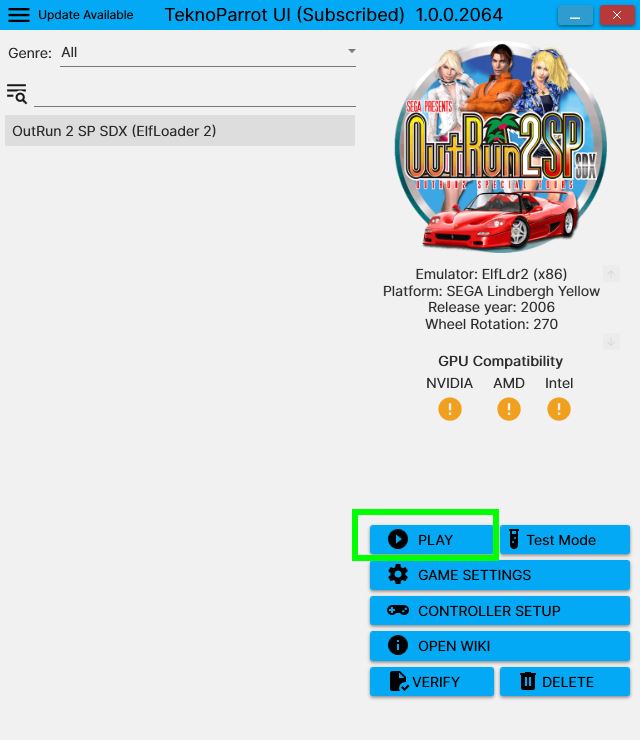
Launch the game
On the first black screen just after launch, you MUST see that Reshade is installed

If not, try to change the API using DirectX.
Once the game is launched, pressing the HOME key on your keyboard will display the available filters on the left. Everything operates in real-time and can be adjusted as you like.
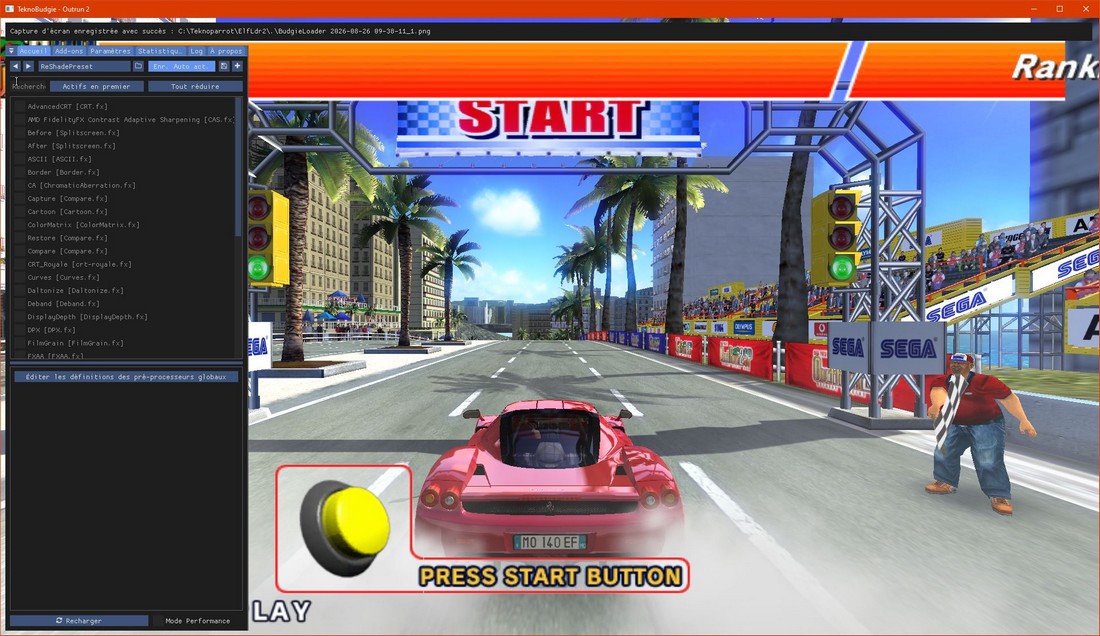
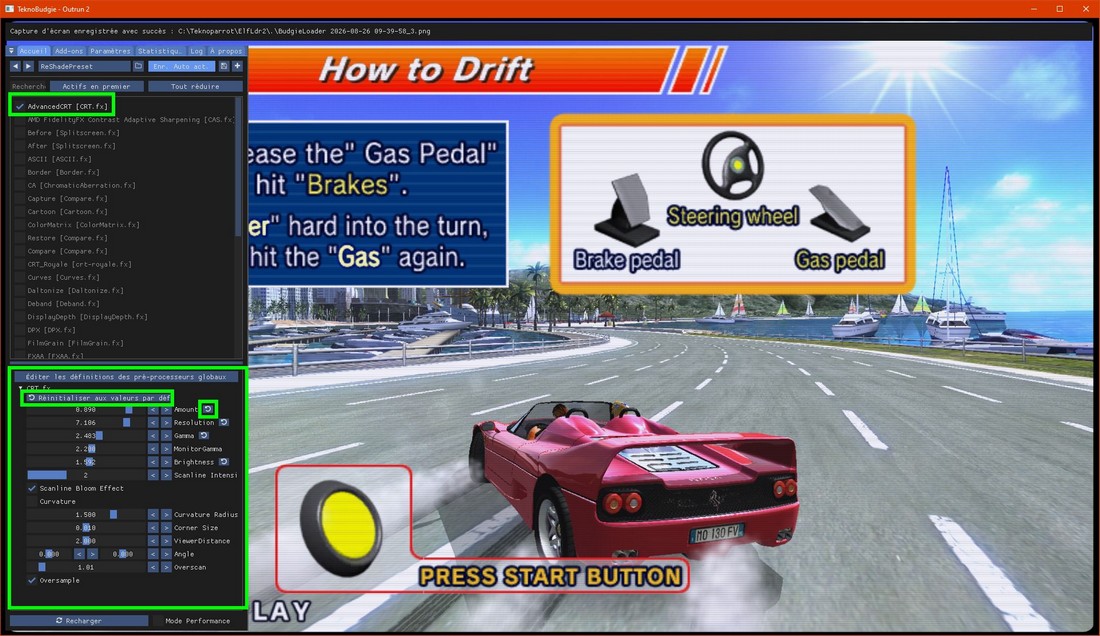
Focusing on the CRT look and assuming you have selected the filters mentioned earlier, here are the two main CRT filters (don't rely on the screenshots below for an accurate representation of the visuals they are 4K images that have been downscaled).
Check the box for ADVANCEDCRT for exemple. You will see the graphics modification in real time !
You can modify many parameters to fit exactly how you like it. The circle-arrow allow you to reset the presets, globally or individually so make many tries !
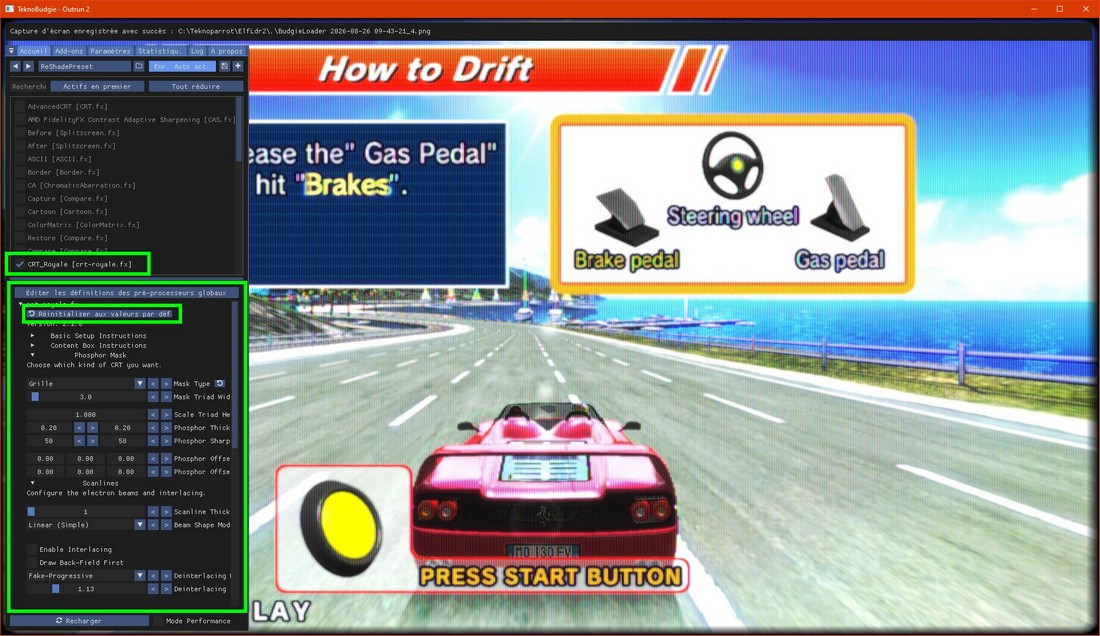
Here is a test with CRT-Royale
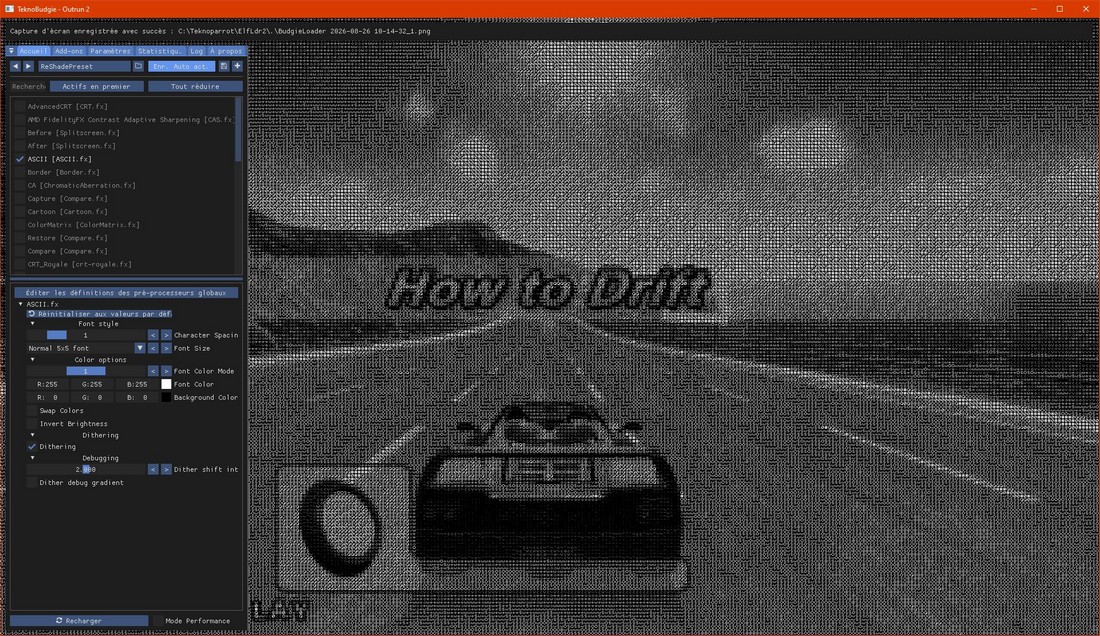
Here is a test displaing the game with ASCII caracters ^^
And of course you can activate many of them simultaneously ! Applying HDR filtres, monochrome, technicolor ....
AND you can reinstall Reshade, it will automaticly detect that it is installed and will propose you to update the list of filters so you can install so many filters just for fun that you will loose half of your lifetime here.
CONGRATULATIONS, you know how to use Reshade !
3 - Bonus part for Sinden lightguns
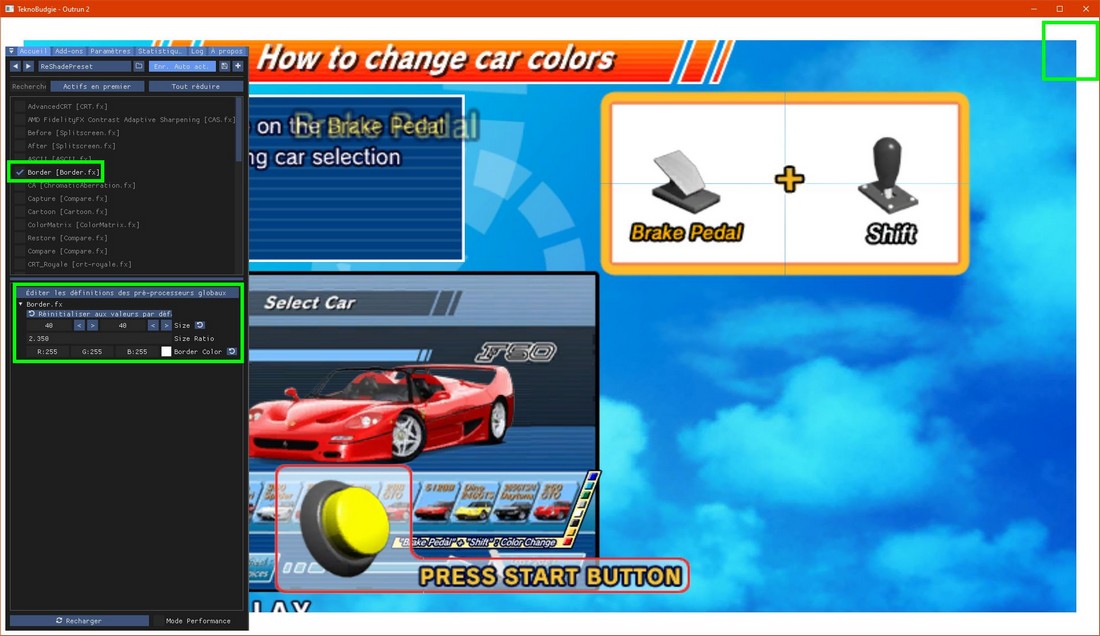
To use Sinden style lightguns, you need a white border around the screen so the gun can visually detect the screen and what could be easier than simply enabling the BORDER filter ?
Since Reshade overlays the game, there are no issues. Here is an example on Outrun 2 SP (even though it isn't strictly necessary for this game) : despite the poor screenshot quality, you can see a 40-pixel white border surrounding the game.
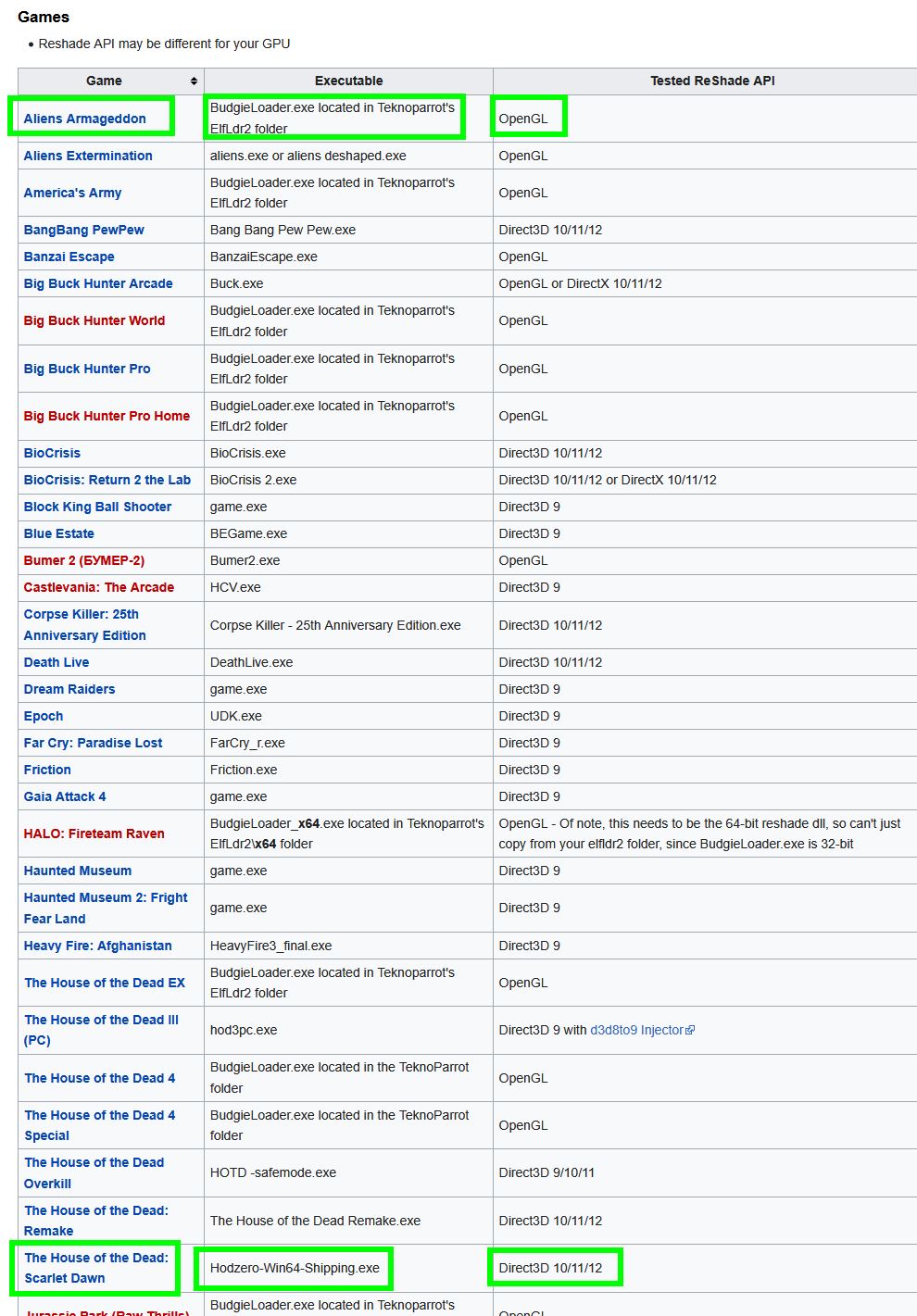
However, you need to figure out which .exe file to apply Reshade to, depending on the game. Sometimes it is the loader (as mentioned earlier), in which case it will work immediately if you have already installed it for Outrun 2 (no need to reinstall; the settings will be shared across all games). Otherwise, if it isn't the loader, here are the configurations where Reshade should be applied for LIGHTGUN GAMES :
https://www.sindenwiki.org/wiki/Reshade#Supported_Game.2FEmulator_APIs
Here is an example shown in the screenshot below, featuring Alien Armageddon (using the same loader as Outrun 2) and House of the Dead Scarlet Down (specific .exe)
CONGRATULATIONS, Reshade tuto is over !
TIPS : in fact, you can use Reshade ... on any game ! In Steam, in everything you want ! You can add a CRT render to Doom Eternal for exemple, that's crazy ! You just have to install Reshade on the main .exe file of the game.
|
|
2026 - Outrun2Tricks is just here to help gamers to configure Outrun2 SP on Teknoparrot the best way possible and enjoy it ! |
|